
The usual way
- Launches a brand-new, empty browser
- You script logins and seed sessions first
- Feature flags and SSO have to be recreated
- Tests run as a bot, not as you
- Brittle selectors break on every change
AutoQAI connects Claude Code, Cursor, GitHub Copilot, or Kiro to the exact tab you have open. Cookies, SSO, and feature flags stay live — so the agent runs real QA flows, assertions, and visual comparisons against your actual app, and hands you findings with the proof attached.
# 1 · Install the MCP server
#   (auto-registers with your AI agent)
npm install -g @autoqai/mcp

# 2 · Add the browser extension from
#   the Chrome Web Store

# 3 · Open your project in your agent —
#   it starts AutoQAI for you. Then pair
# the tab from the extension popover.The agent never launches a browser. It talks to a small local server, which relays instructions to the extension running in your tab — all over a loopback link that never leaves your machine.
Claude Code, Cursor, GitHub Copilot, Kiro, Visual Studio, or a JetBrains IDE. It talks to AutoQAI over the Model Context Protocol and decides what to test and how.
A small Node process started inside your project. It exposes testing capabilities to the agent and bridges them to your browser over a private loopback connection.
Pairs with the server and runs each instruction against the tab you bound — your real, authenticated session — using the browser's own DevTools protocol.
Bind the tab you're already in, queue what you want checked, and your AI agent drives the rest — testing, capturing proof, and verifying fixes in your real session. Watch the loop run, or step through it yourself.
Pair the extension and attach the tab you're already signed into. Cookies, SSO, and feature flags stay live.
AutoQAI gives the agent a full toolkit for inspecting, operating, verifying, and comparing your application — the same things a careful QA engineer would do.
The agent operates the page through real user-style actions, not brittle scripts.
Before acting, the agent can read the structure and state of what's on screen.
Verifications that turn into findings automatically when they fail.
Deterministic, offline diffing for redesigns and regression sweeps — no tokens spent reasoning over raw data.
A structured testing loop that produces reviewable results.
Curate reusable test cases once, then re-run them after every change — organised the way your product actually works.
AutoQAI fits into the workflow you already have.
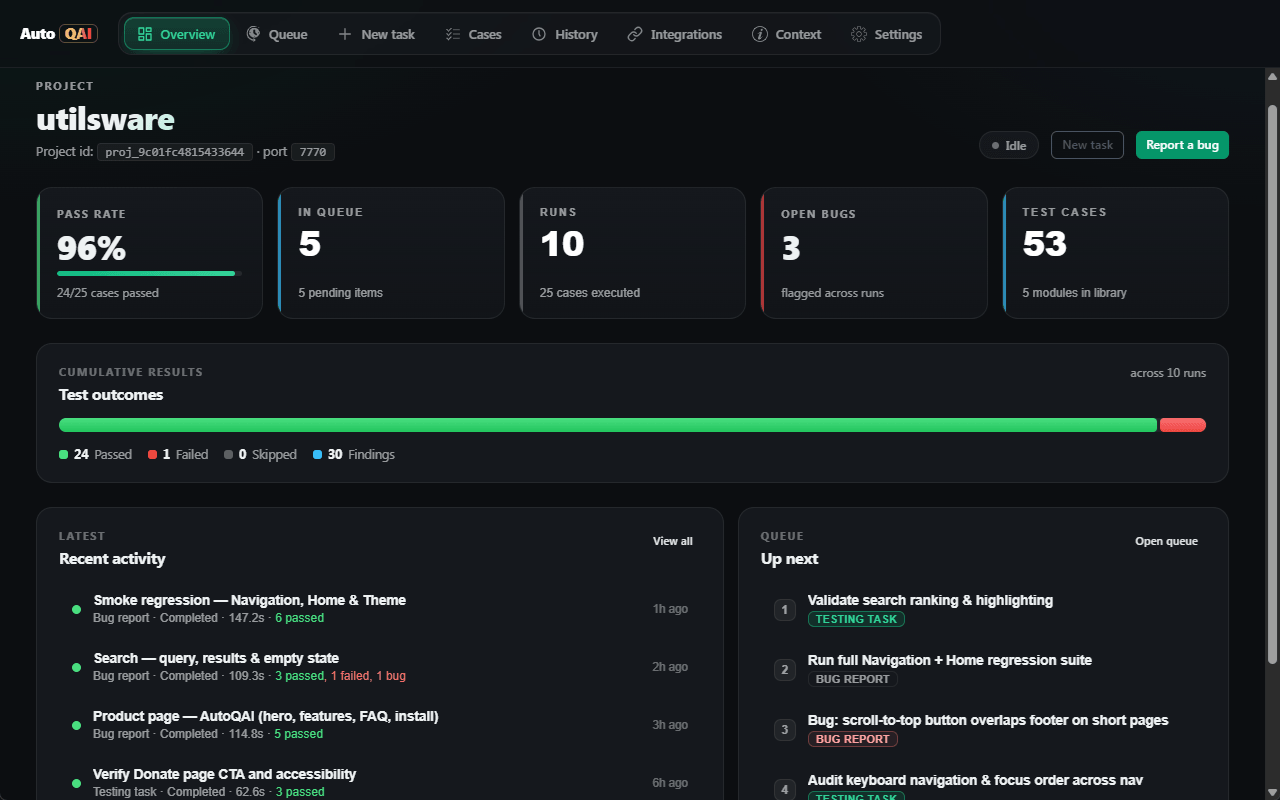
The server and extension talk only over a loopback connection on your own machine, secured with a pairing token. Connections from anywhere else are refused. Your runs, findings, and screenshots are written as plain files inside your project — you own every byte.
.autoqai folder in your repo — no cloud, no telemetry."The killer feature is that it tests in my logged-in session. No more writing throwaway auth setup for every flow — I just point my agent at the tab and it goes."
"The deterministic table and form comparisons are brilliant. We caught a dozen subtle regressions during a redesign that a human eyeballing two tabs would never have spotted."
"Pairing took thirty seconds and from then on my AI agent could click through real flows and hand me findings with screenshots attached. It feels like having a tireless QA partner."
"Everything stays on localhost and writes to files in the repo. That made it an easy yes for our security review — there's nothing phoning home."
Headless tools launch a brand-new, empty browser — so you have to script logins, seed sessions, and recreate state before any real test can run. AutoQAI drives the browser you already have open and signed in. Your cookies, SSO, and feature flags are live, so the agent tests the application exactly as it behaves for a real, authenticated user.
AutoQAI works with any MCP-capable CLI agent. It can auto-register itself with Claude Code, Cursor, GitHub Copilot (agent mode in VS Code), and Kiro using a single init command, and it works with any other client that supports MCP servers over stdio.
No. The MCP server and the extension communicate over a loopback-only WebSocket (127.0.0.1) protected by a pairing token. Connections from any non-loopback address are refused. Test runs, findings, and screenshots are written to plain files inside your project folder.
No. You explicitly pair a project and bind a specific tab from the extension. The browser shows its standard debugging indicator while a tab is bound, and you can unbind at any time.
It can inspect the DOM and accessibility tree, click, type, fill, hover, drag, select options, upload files, press keys, wait for elements or network idle, run assertions, capture screenshots, and extract and compare structured content like tables, forms, and charts.
Yes. AutoQAI is free to use. The MCP server is published on npm and the extension is available from the Chrome Web Store.
Yes. Each bound tab gets its own connection, so an agent can drive several tabs in parallel — useful for multi-window flows or comparing two environments side by side. And while the agent is driving a tab, any new tab that action opens (a link in a new tab, a popup, an OAuth screen) is bound to the same project automatically, so the agent can keep going without you binding it by hand.
Inside your project, under a local .autoqai folder. Configuration, the project context file, the task queue, and every run's test cases, steps, findings, and screenshots are kept there as JSON, Markdown, and image files you fully own.
Yes. The dashboard's Test cases section lets you build a regression library organised as Modules, Features, and individual cases — each saved as a tracked file in your repo. You can author cases by hand (picking selectors straight from the page) or have the agent draft a starter library, then queue any selection for the agent to run, getting a passed / failed / skipped result per case.
Run autoqai uninstall to reverse the init command — it removes only the autoqai entry from each client's MCP config and leaves everything else untouched. Target specific clients with --client, scope it to a project with --project, or preview with --dry-run. Your project's .autoqai folder is never touched, so delete that by hand if you also want to remove a project's runs and queue.
Yes. Run autoqai with no arguments in a terminal and it opens a guided menu that walks you through registering it with your AI client, pairing the extension, and listing your projects. When your agent launches the same command (without an interactive terminal) it runs the MCP server instead, so the integration is never affected.
Pairing is a live connection, so the pairing flow keeps the server running to keep the extension connected — and lets you pair more tabs. When you're ready to use the AI features, stop it (or press Ctrl-C) and start your agent, which launches its own AutoQAI server on the same project port so the bound tab keeps working.
If your AI client was already running when you registered AutoQAI, restart it so it loads the new MCP server. For IDE-integrated extensions (VS Code, Cursor, Kiro) that usually means reloading or restarting the IDE window itself, not just the chat panel. A standalone CLI like Claude Code just needs to be relaunched in the project.
Install the package, add the extension, and pair in under a minute. The full walkthrough is in the docs.